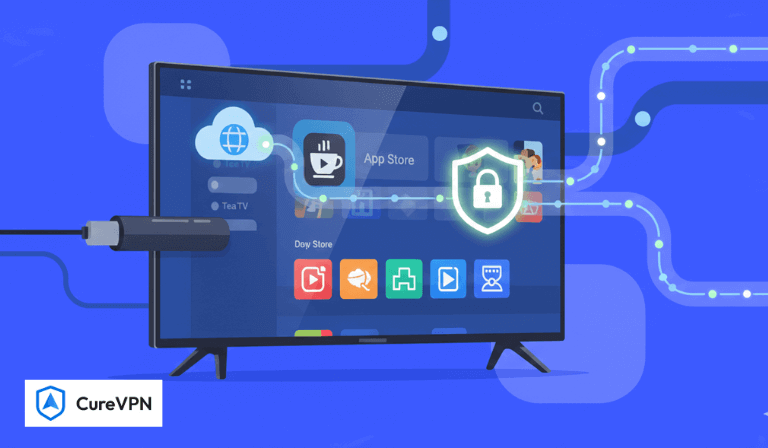

Looking to install TeaTV on FireStick? You’re in the right place.
This step-by-step guide walks you through how to install TeaTV on FireStick safely and correctly, even if you’ve never sideloaded an app before. The instructions work on all Fire TV devices, including:
- Fire TV Stick
- FireStick Lite
- FireStick HD
- Fire TV Stick 4K
- Fire TV Stick 4K Max
- Fire TV Cube
By the end of this guide, you’ll have TeaTV installed, optimized, and secured for streaming.
What Is TeaTV?
TeaTV is a free streaming application that lets you watch movies and TV shows on demand. It works on Android-based devices such as FireStick, Android TV, smartphones, Windows, and macOS.
TeaTV does not host content on its own servers. Instead, it aggregates streaming links from multiple sources across the web. This makes it a popular alternative to discontinued apps like Terrarium TV.
Key Features of TeaTV
- Thousands of movies and TV shows
- Clean, easy-to-navigate interface
- No account or sign-up required
- Works smoothly on FireStick
- Supports external video players
Is TeaTV Safe and Legal?
TeaTV itself is legal to install because it does not host copyrighted material. However, some third-party streaming links inside the app may lead to unlicensed content, depending on your location.
That means users are responsible for how they use the app.
Why a VPN Is Strongly Recommended
Your ISP can see what you stream and may throttle your connection or log activity. To protect your privacy and avoid unnecessary exposure, using a VPN is a smart move.
Cure VPN encrypts your internet traffic, hides your IP address, and prevents tracking while you stream on FireStick.
How to Install TeaTV on FireStick (Quick 9-Step Method)
- Enable app installation from unknown sources.
- Open the Downloader app.
- Select the URL/Search field.
- Enter 28907 and press Go.
- Allow the page to load fully.
- Navigate to the Movies & TV section.
- Select TeaTV from the list.
- Click Download, then Install.
- Delete the APK file after installation to save space.
That’s it. TeaTV will now appear in your Apps section.
Detailed Guide: Install TeaTV on FireStick Using Downloader
Since TeaTV is not available on the Amazon App Store, sideloading is required.
Step 1: Install Downloader
- Go to Find > Search
- Search for Downloader
- Click Download
Step 2: Enable Unknown Apps
- Go to Settings
- Select My Fire TV
- Open Developer Options
- Enable:
- Install Unknown Apps → Downloader
OR - Apps from Unknown Sources → Turn On
- Install Unknown Apps → Downloader
Step 3: Download and Install TeaTV
- Open Downloader
- Enter: teatv.net
- Click Go
- Wait for the APK to download
- Select Install
- Click Done, then Delete the APK
Installing TPlayer (Required for Playback)
TeaTV uses TPlayer for streaming.
When you play a video for the first time:
- TeaTV will prompt you to install TPlayer
- Click Install
- Follow on-screen instructions
Playback will work smoothly after that.
Alternative Method: Install TeaTV Using ES File Explorer
This method works if you prefer a file manager, but note that ES File Explorer requires a paid subscription for downloads.
Steps
- Install ES File Explorer from the Amazon App Store
- Open the app and go to Tools
- Select Download Manager
- Tap New
- Enter the TeaTV APK link
- Download and install the file
How to Launch and Use TeaTV on FireStick
Accessing TeaTV
- Go to the FireStick home screen
- Select Apps & Channels
- Open TeaTV
First Launch Notice
You’ll see a disclaimer explaining that TeaTV links to third-party sources. Click Accept to proceed.
Navigating the Interface
TeaTV’s layout is simple:
- Movies and TV Shows categories
- Trending content
- Search bar
- Calendar view
- Watchlist
Navigation is smooth with the FireStick remote.
How to Add and Manage Your TeaTV Watchlist
Add to Watchlist
- Open a movie or show
- Select the watchlist icon
- Confirm success
Access Watchlist
- Open TeaTV
- Scroll to Watchlist from the left menu
Remove Content
- Open the title
- Tap the watchlist icon again
How to Stream TeaTV on FireStick Safely
Streaming without protection exposes your IP, activity, and location.
Why Use Cure VPN With TeaTV?
- Encrypts all streaming traffic
- Prevents ISP throttling
- Hides your real IP address
- Protects against tracking
- Works smoothly on FireStick
How to Install Cure VPN on FireStick
Step 1: Get a Cure VPN Subscription
Choose a plan from Cure VPN’s official site.
Step 2: Install Cure VPN App
- Go to Find > Search
- Type Cure VPN
- Download and install the app
Step 3: Connect
- Open Cure VPN
- Sign in
- Tap Connect
Once connected, your streaming activity is private and secure.
Final Thoughts
TeaTV remains one of the easiest ways to stream movies and TV shows on FireStick. The app is lightweight, responsive, and simple to use. Installation takes only a few minutes if you follow the steps above.
For a safer and smoother experience, always pair TeaTV with Cure VPN. It keeps your data private, prevents throttling, and lets you stream with peace of mind.
If you have questions or need troubleshooting help, feel free to drop a comment.