
Picture a login page that looks exactly like your bank’s. It has the same logo, the same colors, and a padlock in the address bar. Only one letter in the web address is wrong, and most people never notice it.
That is the real reason people ask how to browse the internet safely. Attackers go after people first and software second. Verizon’s 2026 Data Breach Investigations Report found that the human element played a part in 62% of breaches.
The good news is that safe internet browsing does not require technical skill. It needs a handful of habits, a few well-chosen settings, and the right tools. At Cure VPN, we build privacy software every day, so we see which mistakes cause real damage. This guide walks you through 12 steps that work on any device.
Table of contents
- Quick answer: the safest way to browse
- What safe internet browsing actually means
- The main online threats in 2026
- The 12-step framework for safe browsing
- How to identify unsafe websites
- Private browsing, tracking, and staying anonymous
- Public Wi-Fi and how to protect your data
- Where a VPN fits (and where it does not)
- Expert insights from the Cure VPN team
- Statistics worth knowing
- Common mistakes
- Best practices checklist
- Frequently asked questions
- Conclusion and key takeaways
Quick answer: the safest way to browse
How do you browse the internet safely? Keep your browser and device updated, visit HTTPS sites, and use a password manager with unique passwords. Turn on two-factor authentication, avoid unknown links, block trackers, and use a trusted VPN on public Wi-Fi.
Here is the short version in order of impact:
- Update your browser, operating system, and extensions.
- Use a password manager and passkeys or app-based two-factor authentication.
- Treat every unexpected link, text, and QR code as suspicious.
- Block trackers and tighten browser privacy settings.
- Encrypt your connection with a VPN whenever you leave your home network.

What safe internet browsing actually means
Safe internet browsing is the set of habits and tools that protect your accounts, your device, and your personal data while you use the web. It covers what you click, what you share, and how your traffic travels.
Think of it as three layers. Each layer fails in a different way, so you need all three.
| Layer | What it protects | Typical failure | Main defense |
|---|---|---|---|
| Device and browser | Your files, accounts, and sessions | Outdated software, malicious extensions | Updates, a secure browser, malware protection |
| Connection | Data in transit | Rogue Wi-Fi, unencrypted traffic | HTTPS, a VPN, secure DNS |
| Behavior | Your decisions | Phishing clicks, reused passwords | Skepticism, a password manager, two-factor authentication |
Privacy and security overlap, yet they are not the same thing. Security stops someone from breaking in. Privacy limits how much others can learn about you while you browse. A good routine covers both.
Laws now back this up in many regions. Europe and the UK have GDPR, Brazil has the LGPD, and Canada has PIPEDA. India introduced the Digital Personal Data Protection Act, Japan enforces the APPI, and Australia relies on its Privacy Act. In the United States, state laws such as the CCPA add protections. Still, regulation only helps after a company collects your data, so your own habits matter more.
The main online threats in 2026
Before you fix anything, it helps to know what you are defending against. Most attacks fall into a few groups.
| Threat | How it works | Best defense |
|---|---|---|
| Phishing and smishing | Fake emails, texts, or pages steal logins | Check the sender and address, use passkeys |
| Malicious websites | Pages push malware or fake downloads | Browser safe browsing, updates, antivirus |
| Online tracking | Cookies, scripts, and fingerprinting profile you | Tracker blocking, privacy settings |
| Network eavesdropping | Attackers watch traffic on shared Wi-Fi | HTTPS and a VPN |
| Credential stuffing | Stolen passwords get tried on other sites | Unique passwords, two-factor authentication |
| Online scams | Fake shops, investment pitches, impersonators | Slow down, verify, pay with protection |
Notice how many of these depend on tricking you. That is why the first half of this guide focuses on behavior, not gadgets.
The 12-step framework for safe browsing
Work through these steps in order. Each one takes a few minutes, and together they cover most of what protects a typical user.
Step 1: Keep your browser and device updated
Browsers patch serious flaws every few weeks. Because attackers study those patches, an outdated browser is an open invitation.
Turn on automatic updates for your browser, operating system, and phone apps. Then restart when prompted. Verizon’s 2026 report found that exploiting software flaws was the top way into breached systems, at 31% of cases. That shows how much unpatched software costs.
Extensions need the same care. Remove any you do not use, because each one can read the pages you visit.
Step 2: Choose a secure web browser
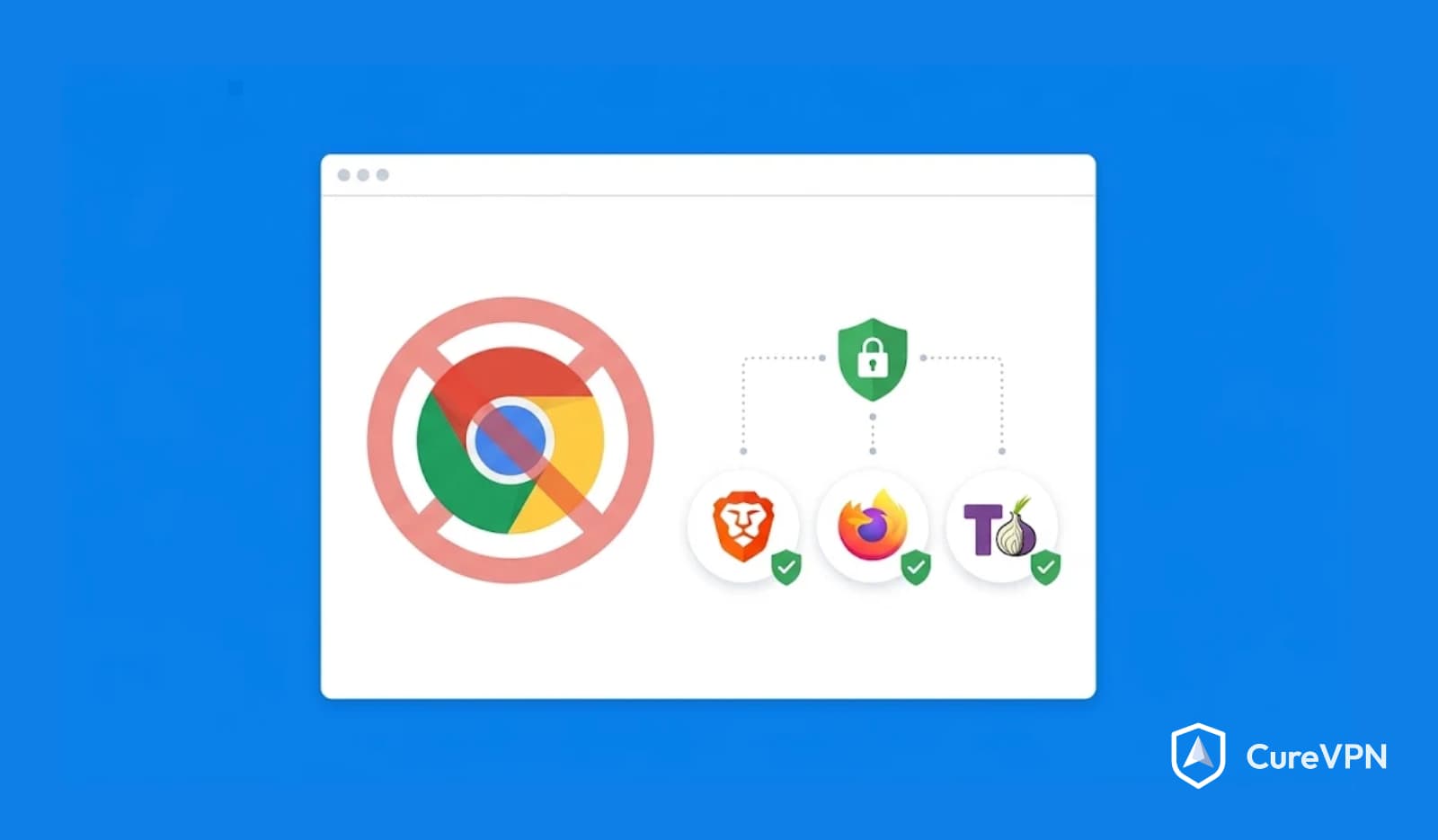
Every major browser can be made safe, but their defaults differ. Look for sandboxing, automatic updates, built-in phishing and malware warnings, and tracker controls.
| Browser | Strength | Watch out for |
|---|---|---|
| Firefox | Strong tracking protection by default | Fewer built-in enterprise controls |
| Safari | Tracking prevention and tight Apple integration | Limited to Apple devices |
| Chrome | Fast security patches and Safe Browsing | Heavy data collection tied to your Google account |
| Edge | Strong phishing and scam filtering | Many bundled services you may not want |
| Brave | Blocks ads and trackers out of the box | Some sites need shield adjustments |
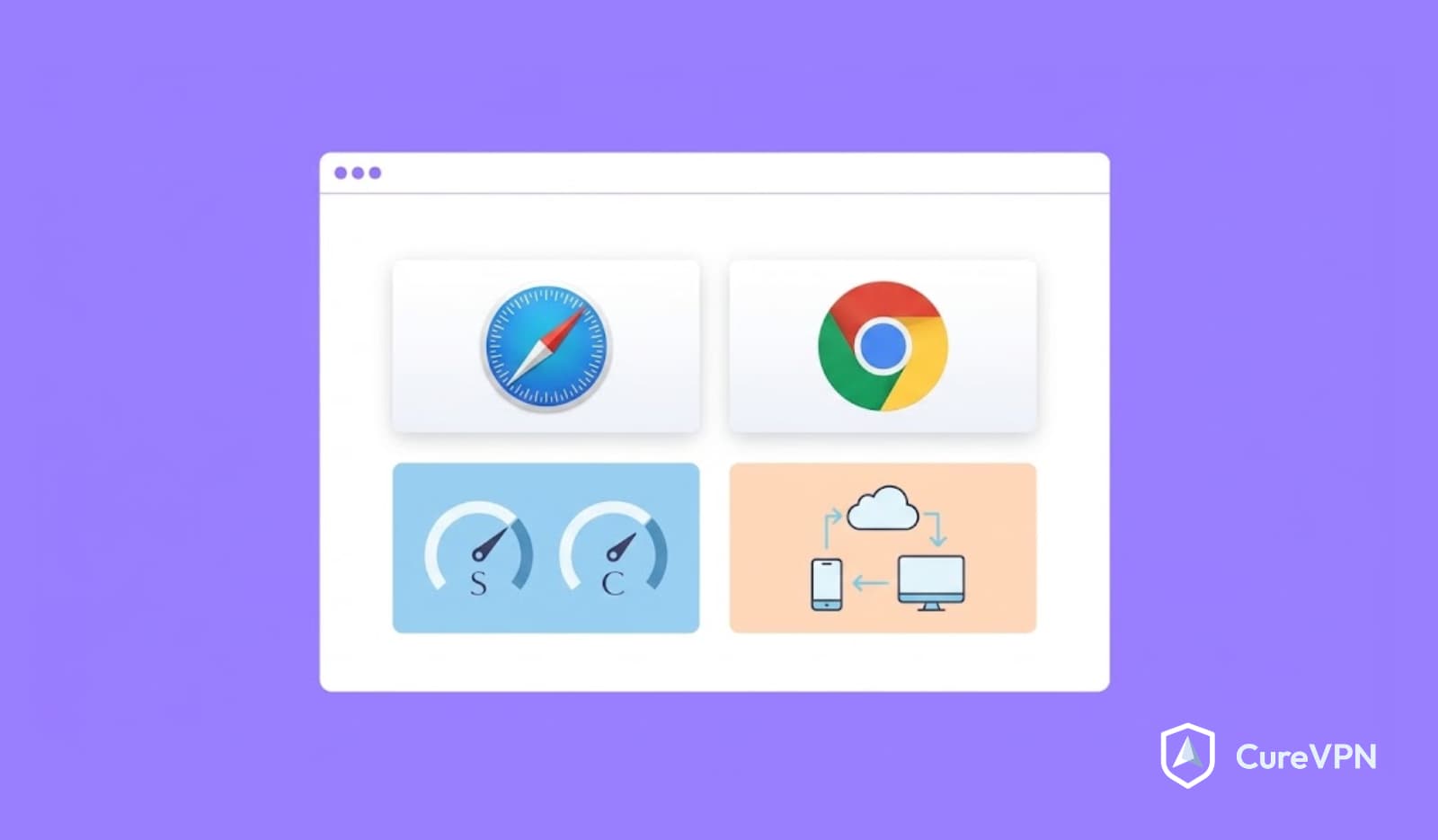
There is no single winner. If you are weighing two of the most common options, our breakdown of Safari vs Chrome compares speed, privacy, and security in more detail. Whichever you pick, use it consistently and keep it updated.
Step 3: Look for HTTPS, but do not trust it blindly
HTTPS encrypts the data between your browser and a website using TLS. It stops others on the network from reading your login or card details in transit.
Check the address bar for a lock or connection icon and a web address that starts with https. However, encryption only proves the connection is private. It does not prove the site is honest. Criminals get free certificates too, so a fake bank page can show a padlock.
Use HTTPS as a minimum, not a verdict. Next, look at the domain itself.
Step 4: Check the address before you act
Read the full domain, not the first few letters. Attackers swap characters, add words like “secure” or “login,” and use unusual endings.
For example, a link to yourbank.com.account-check.net does not belong to yourbank.com. The real owner is the part just before the final ending, so here it is account-check.net.
Type important addresses yourself or use a saved bookmark. That one habit defeats a large share of phishing.
Step 5: Use a password manager and unique passwords
When one site gets breached, criminals try the same email and password everywhere else. This is credential stuffing, and it works because people reuse passwords.
A password manager creates long random passwords and fills them in for you. Also, it only fills on the correct domain, which quietly warns you about fake pages. Choose a long passphrase for the manager itself and never reuse it.
Step 6: Turn on two-factor authentication or passkeys
Two-factor authentication adds a second proof after your password. Passkeys go further by replacing the password with a cryptographic key tied to your device.
Rank your options like this:
- Passkeys or hardware security keys offer the strongest protection.
- Authenticator app codes are a solid default.
- Text message codes are better than nothing, but SIM swapping can defeat them.
Start with your email, bank, and cloud storage accounts. If attackers take over your email, they can reset every other password.
Step 7: Learn to spot phishing across every channel
Phishing no longer lives only in your inbox. Verizon’s 2026 report found that simulated text and voice attacks had click rates about 40% higher than email phishing.
Watch for these signals in any message:
- A sense of urgency, such as “act in 10 minutes.”
- A request for a password, code, or payment.
- A sender address that almost matches a real one.
- A QR code that sends you to a login page.
- A link that hides its real destination.
When in doubt, do not reply and do not click. Instead, open the company’s app or type its address yourself. If someone claims to be your bank, hang up and call the number printed on your card.
Step 8: Tighten your browser privacy and security settings
Your default settings favor convenience. A short settings review changes that.
- Turn on the strongest built-in protection against dangerous sites.
- Block third-party cookies.
- Set site permissions for camera, microphone, and location to “ask.”
- Enable secure DNS, also called DNS over HTTPS, so lookups stay private from local networks.
- Turn off password saving in the browser if you use a dedicated manager.
- Clear site data on a schedule you can keep.
Secure DNS matters more than most people expect. Every site you visit starts with a DNS lookup, and plain lookups can be read and altered on the way.
Step 9: Block trackers and reduce your fingerprint
Websites follow you with cookies, tracking scripts, and browser fingerprinting. Fingerprinting combines details like screen size, fonts, and time zone into an identifier that survives clearing cookies.
An ad blocker removes many trackers and also cuts exposure to malicious ads. In addition, browsers like Firefox, Brave, and Safari include tracking protection that limits cross-site profiling.
You will never reach zero tracking. Even so, fewer scripts means fewer data brokers building a profile of you, and that is a real privacy gain.
Step 10: Treat public Wi-Fi as untrusted
Airport, hotel, and cafe networks are shared by strangers. Anyone can set up a fake hotspot with a believable name, which is known as an evil twin attack.
We cover this in depth below. For now, remember the rule: never do banking or send sensitive data on a network you do not control unless your connection is encrypted.
Step 11: Add a VPN for an encrypted connection
A VPN wraps your traffic in an encrypted tunnel and hides your real IP address from the sites you visit. It is a strong tool for public Wi-Fi and for keeping your internet provider from seeing your browsing. Employers often require one as well, which is why VPN for Work setups are now common.
It is not a cure-all, though. We explain exactly what a VPN does and does not do in a dedicated section later.
Step 12: Back up, monitor, and know what to do after a mistake
Even careful people slip. Plan for that.
Back up important files in two places, one of them offline. Check your accounts for breach alerts. If you do click a bad link, change that password at once, sign out of all sessions, and enable two-factor authentication. Then watch your bank and email for unusual activity over the next few weeks.
How to identify unsafe websites
You can judge many pages in under ten seconds. Use this quick check before you enter any information.
| Check | Safe sign | Warning sign |
|---|---|---|
| Domain | Matches the brand you expect | Extra words, odd endings, swapped letters |
| Connection | HTTPS with no browser warning | Certificate errors, “not secure” label |
| Design | Consistent, professional pages | Broken layout, spelling mistakes |
| Contact details | Real address, phone, and policies | No contact info or copied text |
| Prices | Realistic for the product | Deals far below market value |
| Payment | Credit card or trusted wallet | Wire transfer, gift cards, crypto only |
Reputation checks help too. Search the site’s name with the word “reviews” or “scam,” and look for dates and detail. Brand-new domains with a flood of identical five-star reviews deserve extra suspicion.
Shopping season raises the stakes. In the weeks before Black Friday, fake stores and cloned deal pages multiply. Before you buy, read our Top VPN Deals for Black Friday & Cyber Monday roundup. It shows how legitimate offers look, so you can compare any “too good” price against it.
Private browsing, tracking, and staying anonymous
Many people believe private browsing makes them invisible. It does not.
Incognito or private mode only stops your browser from saving history, cookies, and form entries on your device. Websites, your employer, your school, and your internet provider can still see your activity. So the answer to “is incognito mode safe?” is that it is useful for shared computers but weak for privacy.
Here is what each tool really hides:
| Tool | Hides from other users of the device | Hides from websites | Hides from your ISP or network |
|---|---|---|---|
| Private browsing | Yes | No | No |
| Tracker blocker | No | Partly | No |
| VPN | No | Hides your IP address | Hides your activity, not that you use a VPN |
| Tor Browser | Yes | Largely | Hides content, shows Tor use |
Staying fully anonymous is difficult. Logging in to any account links your activity to you, no matter which tools you use. For everyday privacy, layer a tracker blocker, a VPN, and separate browser profiles for work and personal use.
Location is another quiet leak. Apps and sites estimate where you are from your IP address and device signals. If you want control over it, read our guide on How to Change Facebook Location to see what each setting actually changes.
Public Wi-Fi and how to protect your data
Can public Wi-Fi expose your personal data? Yes, but the risk looks different today than it did ten years ago. Most major sites use HTTPS, so attackers rarely read passwords directly. The bigger dangers are fake hotspots, forced redirects to phishing pages, and weak devices.
Follow this routine on any shared network:
- Confirm the exact network name with the staff before joining.
- Turn off automatic Wi-Fi connection and file sharing.
- Connect your VPN before opening any site or app.
- Skip banking and sensitive logins if you cannot use a VPN.
- Forget the network when you leave.
Mobile data is often the safer choice for sensitive tasks. If you travel for work, a VPN on every device removes most of the guesswork.
Your home network deserves attention as well. Change the router’s default admin password, use WPA3 or WPA2 with a strong passphrase, and update the firmware. For families with many devices, VPN solutions for home can protect everything from laptops to smart TVs.
Where a VPN fits (and where it does not)
A VPN, or virtual private network, creates an encrypted tunnel between your device and a VPN server. Your internet provider sees only that you are connected to the VPN. The websites you visit see the VPN server’s IP address instead of yours.
What a VPN does well
- It encrypts your traffic on untrusted networks.
- It hides your IP address from websites and trackers that rely on it.
- It prevents your internet provider from logging which sites you open.
- It helps you reach content that is restricted by region. For example, people often ask how to unblock TikTok while traveling, and a VPN is the standard answer, subject to local laws and platform terms.
What a VPN does not do
- It does not stop you from entering your password on a phishing page.
- It does not remove malware that you download.
- It does not make you anonymous when you sign in to an account.
- It does not fix weak passwords or missing updates.
In other words, a VPN is one layer. Cure VPN encrypts your connection and masks your IP address, and it works best alongside the habits above.
VPN vs proxy
People often compare these two tools, yet they protect very different things.
| Feature | VPN | Proxy |
|---|---|---|
| Encrypts traffic | Yes, at the device level | Usually no |
| Covers all apps | Yes | Often one app or browser only |
| Hides IP address | Yes | Yes |
| Protects on public Wi-Fi | Yes | Rarely |
| Typical use | Privacy and security | Simple location changes |
For safe browsing, a VPN is the stronger choice because it protects traffic from every app, not just your browser.
How to choose a secure VPN
Look past the marketing. A trustworthy provider should offer modern protocols such as WireGuard or OpenVPN, DNS leak protection, a kill switch, a clear privacy policy, and transparent ownership. Independent audits add real weight to a no-logs promise.
Be careful with a free VPN service. Running servers costs money, so a provider with no paid tier may fund itself by selling data or showing intrusive ads. Some free options are fine for light use, yet you should read the privacy policy before trusting any of them.
Performance matters too, because a slow VPN gets switched off. If speed is your concern, our tips on How to Lower Ping explain how server distance and protocol choice change latency.
DNS leaks and how to avoid them
A DNS leak happens when your device sends lookups outside the VPN tunnel. Your provider can then see which sites you visit even though the rest of your traffic is encrypted.
To avoid DNS leaks, choose a VPN with built-in DNS leak protection. After connecting, run a leak test and check that the resolver belongs to your VPN. Also disable IPv6 if your VPN does not support it, since unprotected IPv6 traffic can bypass the tunnel.
Where the technology is heading
Traditional VPNs route traffic through servers that one company controls. As a result, you still have to trust that company. Decentralized VPNs spread that trust across independent nodes, which changes the privacy model but adds trade-offs in speed and consistency. It is worth watching, even if mainstream providers remain the practical choice today.
Expert insights from the Cure VPN team
Theory helps, but patterns from real use help more. These are the situations our team sees most often, described as typical scenarios rather than individual cases.
The padlock misunderstanding. Many users believe a lock icon means a site is trustworthy. In practice, phishing pages use HTTPS constantly. We tell people to read the domain first and treat the lock as a bonus.
The coffee shop reflex. A traveler connects to “Free_Cafe_WiFi,” checks email, and pays a bill. The network might be real, or it might be an evil twin. Connecting a VPN first costs five seconds and removes the question.
The reused password chain. One small forum gets breached, and the same password unlocks a shopping account, then an email account. Breaking that chain needs only a password manager and two-factor authentication.
The extension that knew too much. People install a coupon or PDF extension and grant it access to every site. Later, the developer sells it and the new owner changes its behavior. Review your extensions twice a year.
Here is a ten-minute audit you can run today:
- Update your browser and operating system.
- Install a password manager and change your email password.
- Turn on two-factor authentication for email and banking.
- Remove extensions you do not recognize.
- Switch on secure DNS and block third-party cookies.
- Install a VPN on your phone and laptop.
A note for businesses and VPN builders
Safe browsing is also a company issue. Staff on home Wi-Fi and hotel networks are part of your attack surface. Verizon’s 2026 report also noted that 48% of breaches involved a third party. A Business VPN gives remote teams an encrypted path to company tools.
Larger organizations often need central control over users, devices, and access rules. A Corporate VPN Solution provides that.
Running a VPN brand, or planning one? White label VPN Development lets you ship branded apps without building the whole stack from scratch.
Retail and subscription businesses also face seasonal spikes in fraud and traffic. Our Black Friday Cyber Monday Playbook covers how VPN providers can prepare for that demand safely.
Statistics worth knowing
These figures come from named, public sources. Treat them as reported numbers, since many incidents never get reported at all.
| Statistic | Source |
|---|---|
| The human element was involved in 62% of breaches | Verizon 2026 Data Breach Investigations Report |
| Exploited vulnerabilities caused 31% of breaches, now the top entry route | Verizon 2026 Data Breach Investigations Report |
| Simulated text and voice attacks had about 40% higher click rates than email | Verizon 2026 Data Breach Investigations Report |
| Phishing attacks rose from 971,181 in Q1 2026 to 1,069,681 in Q2 2026 | Anti-Phishing Working Group (APWG) |
| About 3.8 million phishing attacks were recorded across 2025 | Anti-Phishing Working Group (APWG) |
| Consumers reported $15.9 billion in fraud losses in 2025 | US Federal Trade Commission, Consumer Sentinel Network |
| Text messages were the top contact method reported in fraud cases | US Federal Trade Commission |
| Internet crime losses reported to the FBI reached $20.9 billion in 2025 | FBI Internet Crime Complaint Center (IC3) |
| AI-related scams caused about $893 million in reported losses | FBI IC3 via AARP reporting |
The pattern is clear. Attacks grow every year, they arrive through more channels, and they increasingly use AI to sound convincing. Therefore, habits that were optional in 2020 are basic hygiene now.
Common mistakes
Most breaches trace back to a small set of repeated errors.
- Trusting the padlock alone. HTTPS proves the connection is encrypted, not that the owner is honest.
- Reusing passwords. One leak then opens many accounts.
- Relying on incognito mode. It hides history from the next person at your keyboard, not from the internet.
- Clicking from a message. Links in texts and emails should be treated as untrusted by default.
- Postponing updates. Attackers actively exploit known flaws in old software.
- Using any free VPN. An unvetted app can collect more data than it protects.
- Installing extensions freely. Each one adds access to your browsing.
- Skipping two-factor authentication. Many accounts fall to a stolen password alone.
Best practices checklist
Save this list and review it every few months.
Every day
- Check the domain before logging in.
- Use passkeys or a password manager to sign in.
- Connect a VPN on any network you do not own.
Every month
- Install pending updates for your browser, phone, and apps.
- Review breach alerts for your email addresses.
- Clear cookies and site data you do not need.
Every six months
- Audit browser extensions and app permissions.
- Rotate the passwords on your email and banking accounts.
- Check that backups restore correctly.
Frequently asked questions
How can I browse the internet safely without getting hacked?
Keep software updated, use unique passwords with two-factor authentication, and avoid clicking unexpected links. Add a tracker blocker and a VPN on public Wi-Fi. Most successful attacks trick people, so careful habits matter more than any single tool.
Is it safe to browse the internet without a VPN?
On a trusted home network with HTTPS sites and updated software, browsing is reasonably safe. A VPN adds value on public Wi-Fi and hides your activity from your internet provider. It is helpful, but it is not mandatory for every session.
How can I tell if a website is safe?
Check that the domain matches the real brand and that the page uses HTTPS without warnings. Look for working contact details, clear policies, and realistic prices. Be wary of urgent pressure, odd payment methods, and brand-new domains.
What is the safest way to browse the internet?
Combine an updated secure browser, a password manager, two-factor authentication, and tracker blocking. Then use a VPN on untrusted networks. No single tool is enough, because attacks hit your device, your connection, and your behavior.
Does a VPN make browsing safer?
Yes, in specific ways. A VPN encrypts your traffic, hides your IP address, and protects you on shared networks. It does not stop phishing, remove malware, or replace strong passwords, so use it with good habits.
Can websites steal my personal information?
Malicious sites can trick you into typing data into fake forms or downloading harmful files. Legitimate sites can also collect data through cookies and scripts. Use HTTPS, tracker blocking, and careful form habits to limit both risks.
How do I protect my privacy while browsing?
Block third-party cookies, use a browser with tracking protection, and review site permissions. Turn on secure DNS and use a VPN to hide your IP address. Also avoid staying logged in to ad-heavy accounts while you browse.
How can I stop websites from tracking me?
Start with a browser or extension that blocks trackers, then turn off third-party cookies and limit logins while you browse. A VPN hides your IP address, but fingerprinting and account logins can still identify you. Combine several tools for the best result.
Is incognito mode safe?
Incognito mode is safe for keeping history off a shared device. However, it does not hide your activity from websites, employers, or your internet provider. For real privacy, pair it with a VPN and tracker blocking.
Can hackers track my browsing activity?
Attackers on the same network can sometimes watch unencrypted traffic or redirect you through fake hotspots. Advertisers and data brokers also track you with cookies and fingerprinting. HTTPS, a VPN, and tracker blocking reduce this exposure.
How do I avoid malicious websites?
Type important addresses yourself, use bookmarks, and avoid links in unexpected messages. Keep your browser’s built-in safe browsing feature on. If a page asks you to download something just to view content, leave.
What browser is best for online security?
Firefox, Safari, Brave, Edge, and Chrome can all be secure when updated and configured well. Pick one with automatic updates, phishing warnings, and tracker controls. Consistent use and updates matter more than the brand.
Can public Wi-Fi expose my personal data?
Yes. Fake hotspots, forced redirects, and poorly secured networks can put your accounts at risk. Confirm the network name, avoid sensitive logins, and connect a VPN first. Mobile data is a solid backup for important tasks.
Are free VPNs safe for browsing?
Some are acceptable, but many fund themselves with ads or data sales. Read the privacy policy and look for independent reviews before you install one. If you want to compare options, our guide to the Best free vpn service explains what to check.
Conclusion
Learning how to browse the internet safely comes down to a short list of repeatable habits. Update your software, protect your logins, question every unexpected message, and tighten your browser settings. Then encrypt your connection when you leave a network you trust.
Perfect security does not exist, and you do not need it. You only need to be harder to fool than the average target, and these 12 steps get you there. Start with the ten-minute audit today. Small changes compound quickly.