
Open any news site, and a dozen companies you have never heard of quietly say hello. Each one drops a tiny file in your browser. Together, those files follow you from page to page and build a profile of what you read, buy, and search.
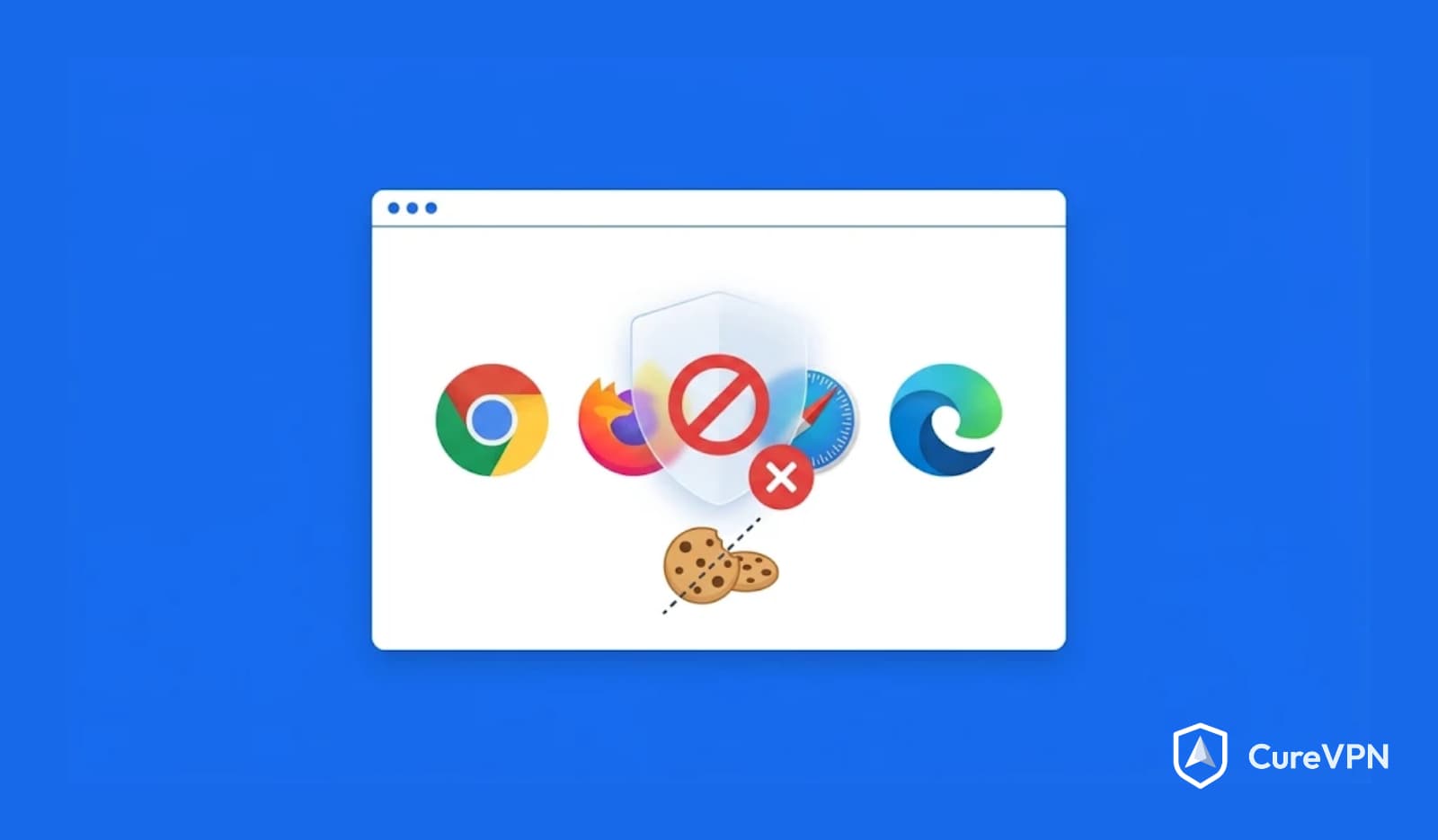
That is the problem this guide solves. You will learn how to block third-party cookies on all browsers, from Chrome and Firefox to Safari on your iPhone. Each section gives exact menu paths, plus the trade-offs you should know before you switch anything off.
There is also a twist worth knowing. Google reversed its plan to phase out third-party cookies in Chrome, so the biggest browser still allows them by default. As a result, your own settings matter more, not less. At Cure VPN, we think that is worth saying plainly.
Table of contents
- Quick answer: how to block third-party cookies
- What third-party cookies are and how they work
- Should you block them? Risks, benefits, and what breaks
- Blocking vs deleting cookies
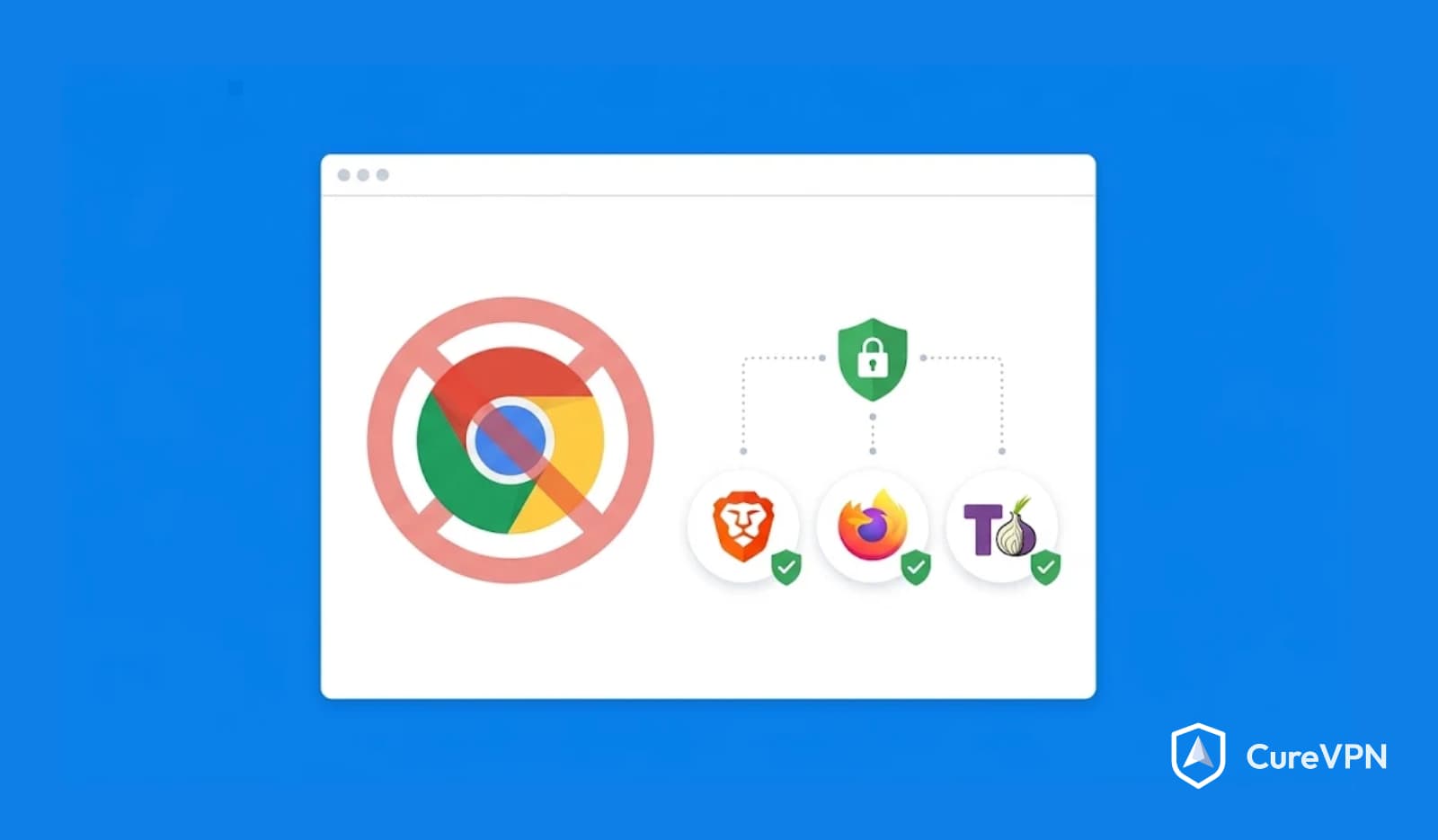
- Where Chrome stands in 2026
- How to block third-party cookies on desktop browsers
- How to block third-party cookies on mobile
- Fixing sites that stop working
- What cookie blocking does not stop
- Where a VPN fits
- Expert insights from the Cure VPN team
- Data and facts worth knowing
- Common mistakes
- Best practices checklist
- Frequently asked questions
- Conclusion and key takeaways
Quick answer: how to block third-party cookies
How do you block third-party cookies? Open your browser’s privacy settings and choose the option to block third-party or cross-site cookies. In Chrome, go to Settings, then Privacy and security, then Third-party cookies, and select Block third-party cookies. Firefox, Edge, Safari, Opera, and Brave each have an equivalent switch.
Here is the whole picture in one table.
| Browser | Where to find the setting | Option to choose |
|---|---|---|
| Chrome (desktop) | Settings > Privacy and security > Third-party cookies | Block third-party cookies |
| Firefox | Settings > Privacy & Security > Enhanced Tracking Protection | Strict, or Custom > Cookies > All cross-site cookies |
| Edge | Settings > Cookies and site permissions > Manage and delete cookies and site data | Block third-party cookies |
| Safari (Mac) | Safari > Settings > Privacy | Prevent cross-site tracking (or Block all cookies) |
| Opera | Settings > Privacy & security > Third-party cookies | Block third-party cookies |
| Brave | Settings > Shields > Cookies | Block only third-party cookies |
| Chrome (Android) | Settings > Site settings > Third-party cookies | Block third-party cookies |
| Safari (iPhone) | Settings > Safari > Privacy & Security | Prevent Cross-Site Tracking |
Menu names shift between versions. If a label looks different on your device, search the settings page for “cookies.”
What third-party cookies are and how they work
A third-party cookie is a small file set by a domain other than the website you are visiting. Advertisers, analytics firms, and social platforms use them to recognize you across many sites.
First-party cookies are different. Instead, the site you are on sets them, and they handle useful jobs such as keeping you logged in or remembering your cart.
| Feature | First-party cookie | Third-party cookie |
|---|---|---|
| Set by | The site you visit | A different domain embedded in that site |
| Typical purpose | Logins, carts, preferences | Ad targeting, cross-site tracking |
| Visible across sites | No | Yes, wherever the same tracker is embedded |
| Usually worth blocking | No | Yes, for most people |
Here is how the tracking works in practice. A news site embeds an ad, a share button, or an analytics script from another company. When your browser loads that piece, the tracker’s server sets a cookie with a unique ID.
Later, you visit a shop that embeds the same tracker. Your browser then sends the same ID back. As a result, the tracker knows you visited both sites, and it adds each visit to your profile. Advertisers use that profile for targeted ads and audience segments.
These files belong to a wider family of website tracking technologies. Tracking pixels, local storage, and digital fingerprinting also do similar jobs, which we cover later.
Should you block them? Risks, benefits, and what breaks
Are third-party cookies dangerous? Not in the way malware is. They do not damage your device. Instead, they are a privacy risk, because they let companies build detailed profiles of your browsing without a real choice on your part.
There are clear reasons to block them:
- They enable cross-site tracking and profile building.
- They feed data brokers and ad networks.
- They can expose your interests on shared computers.
- They add little value to the pages you actually want to read.
Blocking them is a good idea for most people. Nonetheless, there is a cost. Some features depend on cookies from another domain, so a few sites may misbehave.
Here is what commonly breaks:
- “Sign in with” buttons that use another company’s login.
- Embedded payment forms and some checkout pages.
- Chat widgets and support pop-ups.
- Video players and comment systems hosted elsewhere.
Most sites work fine, though. Because first-party cookies stay intact, your logins and carts keep working on the sites you visit directly. If one page breaks, you can allow cookies for that single site, as the troubleshooting section shows.
Blocking vs deleting cookies
These two actions sound alike, yet they solve different problems.
| Action | What it does | When to use it |
|---|---|---|
| Block | Stops new third-party cookies from being stored | Ongoing protection |
| Delete | Removes cookies already stored | One-time cleanup or after a privacy slip |
Blocking works going forward. It does not erase anything saved earlier. Therefore, do both. Block first, then clear your existing data.
In Chrome, open More, choose Delete browsing data, pick a time range, tick Cookies and other site data, and select Delete data. Safari on Mac works differently: go to Settings, then Privacy, and click Manage Website Data. On iPhone, open Settings, tap Safari, and choose Clear History and Website Data.
However, deleting cookies signs you out of most sites, so have your passwords ready. Our guide on How to Clear Browser Cookies covers every browser in more detail.
Where Chrome stands in 2026
Does Chrome automatically block third-party cookies? No. Google announced in July 2024 that it would keep them. Then, in April 2025, it dropped the planned one-time choice prompt for users. By October 2025, it had retired ten Privacy Sandbox APIs after low adoption, according to industry reporting. Three technologies survived: CHIPS, FedCM, and Private State Tokens.
The result is simple. In practice, Chrome allows third-party cookies in normal windows by default, yet it blocks them in Incognito mode. Unless you change the setting yourself, Chrome keeps the old behavior.
Safari, Firefox, and Brave took a different path. Instead, they limit cross-site tracking by default, as the table below shows.
| Browser | Default cookie behavior | Strictest cookie setting |
|---|---|---|
| Chrome | Allows third-party cookies, blocks them in Incognito | Block third-party cookies |
| Firefox | Standard mode blocks cross-site tracking cookies | Strict, or Custom with all cross-site cookies |
| Edge | Tracking prevention is on, with Balanced and Strict levels | Strict plus Block third-party cookies |
| Safari | Prevent cross-site tracking is on | Block all cookies |
| Opera | Check your version’s setting | Block third-party cookies |
| Brave | Blocks third-party cookies by default | Block all cookies |
How to block third-party cookies on desktop browsers
Follow the section for your browser. Each takes about a minute.
How to block third-party cookies in Chrome
- Open Chrome.
- Select More (the three dots) at the top right, then Settings.
- Choose Privacy and security, then Third-party cookies.
- Select Block third-party cookies.
Chrome also lets you add exceptions for sites that need cookies. However, keep that list short. For a deeper look at privacy-first options beyond Chrome, see our list of Best Chrome Alternatives for Privacy.
How to disable third-party cookies in Firefox
Firefox, however, has the most flexible controls. Its Enhanced Tracking Protection offers three levels. Standard blocks cross-site tracking cookies. Strict goes further, and Mozilla’s help page describes it as disabling all cross-site cookies. Custom lets you pick the exact types.
To use Custom:
- Open the menu and choose Settings.
- Select Privacy & Security.
- Under Enhanced Tracking Protection, select Custom.
- Tick Cookies, then choose “All cross-site cookies” from the drop-down.
- Click the reload button to apply the change to open tabs.
Mozilla warns that this strictest choice may break some websites. As a softer option, try “Cross-site tracking cookies, and isolate other cross-site cookies.” That choice turns on Total Cookie Protection. It keeps each site’s cookies in a separate jar, so trackers cannot connect them.
How to block third-party cookies in Microsoft Edge
- Select Settings and more (the three dots), then Settings.
- Open Privacy, search, and services.
- Under Tracking prevention, make sure the switch is on, then choose Balanced or Strict.
- Go to Cookies and site permissions, then Manage and delete cookies and site data.
- Turn on Block third-party cookies.
If these options appear greyed out, your employer may manage the browser through policy. In that case, ask your IT team.
How to block third-party cookies in Safari on Mac
Safari handles this differently. Instead, it uses Intelligent Tracking Prevention, which is on by default, so it has no separate third-party-only switch.
- Open Safari and choose Settings from the Safari menu (older macOS versions call it Preferences).
- Click the Privacy tab.
- Make sure Prevent cross-site tracking is ticked.
- For maximum blocking, tick Block all cookies.
Be careful with that last option. It blocks first-party cookies too, so many sites will stop working properly. For that reason, most people do better leaving Prevent cross-site tracking on. If you are choosing between browsers, our breakdown of Safari vs Chrome explains how their privacy models differ.
How to disable third-party cookies in Opera
- Click the Opera icon at the top left and choose Settings (or press Alt + P).
- In the sidebar, select Privacy & security, then Third-party cookies.
- Select Block third-party cookies.
This also works in Opera GX. Opera’s setting applies outside private windows as well.
How to block third-party cookies in Brave
Brave blocks third-party cookies by default. Still, you can check or tighten the setting.
- Open the menu and choose Settings.
- Select Shields in the sidebar.
- Find the cookie control and choose Block only third-party cookies, or Block all cookies for stricter protection.
Because the labels differ slightly across Brave versions, check the wording on your own screen.
How to block third-party cookies on mobile
Phones need their own steps. Moreover, mobile browsers behave differently from their desktop versions.
How to disable cross-site tracking on iPhone
Apple builds this control into Safari.
- Open Settings and tap Safari.
- Scroll to Privacy & Security.
- Make sure Prevent Cross-Site Tracking is on. It is on by default.
- Turn on Block All Cookies only if you accept that many sites will break.
- To clear what is already stored, tap Clear History and Website Data.
Browsers on iPhone generally rely on Apple’s WebKit engine. As a result, Safari’s protections apply across most of them. Check each app’s own settings as well.
How to block third-party cookies in Chrome on Android
- Open the Chrome app and tap the three dots.
- Tap Settings, then Site settings.
- Tap Third-party cookies.
- Choose Block third-party cookies.
On some versions, the path runs through Privacy and security instead. If a site fails afterward, add an exception for it.
How to block third-party cookies in Brave on Android
- Tap Menu, then Settings.
- Under General, tap Site settings.
- Tap Third-party cookies and select Block third-party cookies.
That is also the default. However, if a site breaks, you can temporarily switch to Allow all cookies.
Firefox on Android
Firefox for Android also includes Enhanced Tracking Protection. Then open Settings, find the tracking protection section, and choose Strict or Custom. Still, exact menu names vary by version.
Fixing sites that stop working
Sometimes a site fails after you block cookies. A login loop, a missing video, or a stuck checkout are common signs. Don’t panic, because you have simple fixes.
- Reload the page and try again.
- Add that one site to your browser’s exceptions list.
- In Firefox, click the shield icon in the address bar and turn off protection for that site only.
- Try the task in a private window as a test.
- Switch cookie settings back only if the site is essential and you trust it.
Exceptions keep your protection strong everywhere else. Even so, treat them as temporary, and remove them when you finish.
What cookie blocking does not stop
Does blocking cookies stop tracking? It stops one kind, and only partly. Mozilla itself notes that blocking third-party cookies does not stop all tracking. Meanwhile, several other methods continue to work.
| Tracking method | How it works | Does cookie blocking stop it? |
|---|---|---|
| Third-party cookies | ID files set by embedded domains | Yes |
| First-party tracking | The site you visit tracks your actions itself | No |
| Browser fingerprinting | Combines screen size, fonts, and settings into an ID | No |
| IP address tracking | Links visits by your network address | No |
| Link decoration | Adds tracking codes to URLs | No |
| Logged-in tracking | Ties activity to your account | No |
Digital fingerprinting deserves a special mention. It needs no stored file at all. Therefore, clearing cookies does nothing against it. Read our explainer, What Is Browser Fingerprinting?, to see how it works and what reduces it.
Targeted advertising also continues in other forms. If ads still follow you, our walkthrough on How to Stop Targeted Ads covers the remaining controls.
Private browsing is not a substitute
Many people assume private windows solve this. They only keep history and cookies off your device after the session ends. However, websites and your internet provider can still see your activity, so see What Is Incognito Mode? for the full picture.
Cookie banners are a different tool
Cookie consent settings on websites are a legal mechanism. Several laws push sites to ask permission. They include the EU’s GDPR and ePrivacy framework, the UK’s PECR, Brazil’s LGPD, Canada’s PIPEDA, India’s DPDP Act, Japan’s APPI, and Australia’s Privacy Act. In the United States, state laws such as the CCPA add opt-out rights.
Banners depend on each site’s honesty and on you clicking every time. By contrast, browser-level blocking works everywhere without the extra clicks. Some browsers, including Firefox and Brave, also support the Global Privacy Control signal, which tells sites not to sell or share your data.
Where a VPN fits
Can a VPN block third-party cookies? No. A VPN works at the network level. It encrypts your traffic and hides your IP address, but it does not read or edit cookies stored inside your browser.
That does not make a VPN irrelevant. In fact, cookies and IP addresses are two halves of the same tracking puzzle. When a tracker sees both, it can link your sessions even more reliably. As a result, using both tools closes more gaps.
| What you want | Cookie blocking | VPN |
|---|---|---|
| Stop cross-site tracking cookies | Yes | No |
| Hide your IP address from sites | No | Yes |
| Encrypt traffic on public Wi-Fi | No | Yes |
| Stop your internet provider seeing your browsing | No | Yes |
For the IP side, our guide on How to Hide Your IP Address explains the options. Cure VPN encrypts your connection and masks your IP address, so it pairs naturally with the browser settings above.
Choosing a VPN carefully
Be careful with free apps. Running servers costs money, so a provider with no paid plan may earn its income from ads or data. An ad-funded app can even embed the same trackers you are trying to avoid, yet few people check. Read the privacy policy before you trust any free VPN service.
Also look for DNS leak protection, a kill switch, and modern protocols such as WireGuard. Our explainer on What Is DNS Leak Protection? shows why this matters. Speed counts too, because a slow tunnel gets switched off.
Some readers also ask about proxies. Both hide your address, but they differ in scope. Our VPN vs Proxy comparison explains why a VPN covers every app while a proxy usually covers one.
Other privacy tools worth pairing
For broader protection, combine cookie blocking with a tracker-blocking extension and a privacy-focused browser. The article on the Best Browser for Privacy compares the main choices.
Location is another leak. Sites estimate where you are from your IP address and device signals. A VPN changes what they see, which is why travelers often ask how to unblock TikTok abroad. Local laws and platform terms still apply.
Expert insights from the Cure VPN team
Settings only help if people actually use them. These are the patterns we see most often, described as typical scenarios rather than individual cases.
Default trap. Many users assume their browser already protects them. However, Chrome, the most popular browser, still allows third-party cookies in normal windows. A thirty-second change closes that gap.
Over-correction. Some people switch on Safari’s Block all cookies and find that every login breaks. Then they give up and turn everything back on. In practice, a balanced setup lasts longer than a perfect one.
Shared device. A family laptop collects cookies from every member. As a result, a single clean-up can reveal surprising ad profiles. Separate browser profiles stop the mixing.
False sense of safety. After blocking cookies, people stop thinking about tracking. Meanwhile, fingerprinting and account logins keep working, so the habit of layered protection matters most.
Here is a ten-minute cookie audit you can run today:
- Block third-party cookies in your main browser using the steps above.
- Clear existing cookies and site data.
- Turn on tracking protection in Firefox, Edge, or Safari if you use them.
- Repeat the setting on your phone.
- Review your exceptions list and remove anything you no longer need.
- Install a VPN on every device you use on public networks.
A note for businesses and VPN builders
Cookie policy is also a business issue. For example, teams that browse from home or hotel networks carry tracking exposure into company accounts. A Business VPN gives staff an encrypted path to company tools, and many employers now require it.
Larger organizations often want central control as well. A Corporate VPN Solution provides user management and access rules.
Meanwhile, VPN for Work policies for remote staff often pair with browser privacy standards.
If you build or resell VPN apps, audit what your own website and in-app web views load. Otherwise, a privacy product that ships trackers undermines its own promise. White label VPN Development lets you launch branded apps. In addition, publish a clear cookie policy alongside them.
Home users have similar needs. VPN solutions for home can cover every device on your network, from laptops to smart TVs.
Separately, Decentralized VPNs are an emerging approach that spreads trust across independent nodes.
Data and facts worth knowing
Hard numbers on cookie use shift often, so we focus on facts that you can verify against named sources. Cite the primary page when you republish them.
| Fact | Source |
|---|---|
| Chrome keeps third-party cookies by default, after Google reversed its phase-out in July 2024 | Google announcements, summarized by Secure Privacy |
| Google dropped its planned cookie choice prompt on April 22, 2025 | Google announcements, summarized by Secure Privacy |
| Google retired ten Privacy Sandbox APIs on October 17, 2025 | Google announcements, summarized by Secure Privacy |
| CHIPS, FedCM, and Private State Tokens remain from the Privacy Sandbox | Google announcements, summarized by Secure Privacy |
| Chrome blocks third-party cookies in Incognito mode by default | Google Chrome Help |
| Firefox’s Total Cookie Protection keeps cookies confined to the site that set them | Mozilla Support |
| Firefox Standard mode blocks cross-site tracking cookies by default | Mozilla Support |
| Safari turns on Prevent cross-site tracking by default on iPhone | Apple Support |
| Brave blocks third-party cookies by default | Brave Support |
One pattern stands out. Browsers built by privacy-focused companies block tracking cookies by default, while the largest advertising-funded browser does not. As a result, your own settings matter.
Common mistakes
A few errors repeat across almost every setup we review.
- Blocking only on desktop. Your phone leaks just as much, so repeat the steps there.
- Blocking without deleting. Old cookies stay until you clear them.
- Using Block all cookies by default. It breaks first-party logins and frustrates most users.
- Assuming private mode is enough. It does not hide your activity from sites or providers.
- Forgetting exceptions. Old exceptions quietly reopen the door to trackers.
- Ignoring fingerprinting. Cookie blocking alone leaves a large gap.
- Trusting any free VPN. Some apps carry their own trackers.
Best practices checklist
Save this list and review it a few times a year.
Today
- Block third-party cookies in every browser you use.
- Turn on Prevent cross-site tracking in Safari.
- Repeat the settings on your phone and tablet.
Monthly
- Clear cookies and site data you do not need.
- Update your browser so protections stay current.
- Review the exceptions list.
Twice a year
- Audit your browser extensions and remove unused ones.
- Check tracking protection levels after major browser updates.
- Test your setup with a privacy checker.
Frequently asked questions
How do I block all third-party cookies?
Open your browser’s privacy settings and choose the option to block third-party or cross-site cookies. In Chrome, that is Settings, Privacy and security, Third-party cookies, then Block third-party cookies. Firefox users should choose Strict or a Custom setting for all cross-site cookies.
Should I block third-party cookies?
For most people, yes. They exist mainly to track you across sites, and most websites work fine without them. However, the main cost is occasional breakage on sites that embed logins or payments from other domains.
Is blocking third-party cookies a good idea?
Yes, because it reduces cross-site profiling at almost no cost to everyday browsing. It is not complete protection, though. Pair it with tracker blocking and a VPN, since fingerprinting and first-party tracking continue.
How do I block cookies on every browser?
Repeat the setting in each browser and on each device. The paths differ, but the idea is the same: find the privacy or cookie page and block third-party or cross-site cookies. Still, the table near the top lists every path.
Does blocking cookies stop tracking?
Only partly. It stops cross-site tracking through third-party cookies. First-party tracking, browser fingerprinting, and IP address tracking all continue, so layer several tools together.
Can I block cookies without breaking websites?
Usually, yes. Block only third-party cookies instead of all cookies, because first-party cookies keep logins working. If a site fails, add a one-site exception rather than loosening the whole setting.
How do I remove existing third-party cookies?
Open your browser’s clear data option and select cookies and site data. In Chrome, use Delete browsing data. Safari offers Manage Website Data, and iPhone users can tap Clear History and Website Data. Afterward, you will be signed out of most sites.
Does Chrome automatically block third-party cookies?
No. Chrome allows them in normal windows by default and blocks them in Incognito. Google reversed its phase-out plan, so you need to turn on the block yourself in Settings.
What is the difference between blocking and deleting cookies?
Blocking stops new third-party cookies from being stored. Deleting removes cookies that are already saved. Use blocking for ongoing protection and deleting for a one-time clean-up.
Can a VPN block third-party cookies?
No. A VPN encrypts your connection and hides your IP address, but it does not control cookies inside your browser. It works best alongside cookie blocking, because trackers use both signals.
What are third-party cookies?
Third-party cookies are small files set by a domain other than the site you are visiting. Advertisers and analytics companies use them to recognize you across sites and build a profile.
Are third-party cookies dangerous?
They are not malware, but they are a privacy risk. Companies can use them to track your browsing across sites and build detailed profiles without clear consent.
Do websites work without third-party cookies?
Most do. First-party cookies still handle logins and carts. Some embedded features, such as “Sign in with” buttons or certain payment forms, may need an exception.
How can I stop websites from tracking me?
Start by blocking third-party cookies and turning on your browser’s tracking protection. Then add a tracker blocker, limit logins, and use a VPN to hide your IP address. For a wider plan, see How to Stop Websites from Tracking You.
Conclusion
Learning how to block third-party cookies on all browsers takes about ten minutes, and the payoff lasts for years. Pick the right setting in each browser, clear what is already stored, and repeat the steps on your phone. Then keep a short exceptions list for the few sites that truly need cookies.
Cookie blocking is one strong layer, not a finish line. Trackers also use fingerprints, accounts, and IP addresses, so the best privacy setup stacks several defenses. For a wider plan, read How to Protect Your Online Privacy. Start with the cookie audit today, and revisit it after major browser updates.
Key takeaways
- A third-party cookie is set by a domain other than the site you visit, mainly to track you across sites.
- Chrome still allows third-party cookies by default, so you must block them yourself.
- Safari and Brave limit tracking by default, and Firefox has strong cookie isolation.
- Blocking stops new cookies, while deleting removes old ones, so do both.
- Cookie blocking does not stop fingerprinting, first-party tracking, or IP tracking.
- A VPN cannot block cookies, but it covers the IP address and network side.
- Repeat every setting on your phone to close the gap.
Take back your privacy with Cure VPN
You have locked down your cookies. Now secure the connection underneath them. Cure VPN encrypts your traffic, masks your IP address, and keeps your browsing private on every network. Download Cure VPN, connect before you browse, and make tracking harder at every layer.